

How to Accelerate Your Laptop
When your laptop seems to be running slower than desired, various factors, both hardware and software, could be at play. Depending on the scenario, there are ways to speed up your laptop, making it more responsive, launching programs faster, and slightly boosting FPS in games. You can upgrade your RAM and HDD, matching the part to your model is very easy, you just need to know your laptop model.
This guide explores methods to enhance the speed of your laptop in different situations, whether it’s an old or new device, running on various operating systems, and featuring different specifications.
Hardware Components Impacting Performance
Let’s first delve into the hardware aspects that can influence your laptop’s speed, including:
- Processor
- Random Access Memory (RAM)
- Hard Disk Drive (HDD)
- Cooling System
While influencing the processor in most modern laptops might be challenging, attention should be directed to the other components, applicable to both older and recently acquired laptops.
Random Access Memory (RAM)
In general, the more RAM, the better. For seamless performance with modern Windows versions and applications, a minimum of 8 GB of RAM in dual-channel mode is advisable, with an upgrade to 16 GB being even more beneficial.
Unfortunately, not all laptops allow RAM expansion, especially some budget models. However, if your device permits and currently has 2-4 GB of RAM, such an upgrade can be advantageous.
Hard Disk Drive (HDD)
One of the common weaknesses in most laptops is the hard disk drive. HDDs are not only generally slower than contemporary Solid State Drives (SSDs), but laptops often feature even slower HDDs compared to their desktop counterparts (notably in terms of revolutions per minute — rpm, with most laptop HDDs at 5400 rpm versus 7200 rpm for desktop HDDs).
If your laptop is equipped with an HDD, replacing it with an SSD (either entirely or as a supplementary system drive, where supported) can noticeably enhance the speed of your laptop. This improvement is particularly relevant for new laptops running Windows 10, but even on older devices, the difference is noticeable (though the economic viability of such an upgrade may vary).
Cooling System Optimization
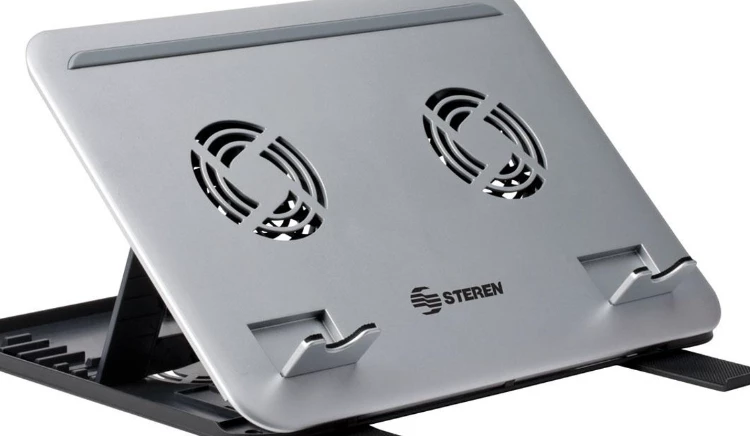
If your laptop’s cooling system is consistently running at maximum capacity and, at times, shutting down under loads (such as gaming), it’s not something to ignore. Overheating affects both the immediate processing speed (slowing down the processor) and the longevity of the laptop itself, specifically its electronic components.
What steps can be taken? Start by cleaning the laptop of dust. If it’s already 2-3 years old and a simple dust cleanup doesn’t resolve the issue, consider replacing the thermal paste on the processor and GPU. While I wouldn’t recommend everyone attempt this themselves (if uncertain, seeking professional help is wise), it’s generally not too complex, and online instructions are often sensible (though exceptions exist).
In essence, with functioning hardware components, the aforementioned actions represent the extent of what we can influence to boost performance. Yes, it involves some investment, but sometimes it’s worthwhile.
Operating System Replacement
While not a widely popular method, if an alternative operating system allows you to perform your usual tasks seamlessly, why not consider it? Instead of Windows 10, you could install a less resource-demanding Windows 7 or explore the plethora of Linux distributions that exhibit excellent performance even on aging laptops. If this seems too radical and you’re determined to work in a new operating system, let’s explore further.
Hardware Overclocking
Overclocking, altering the default settings of the processor, graphics card, and RAM, is another effective way to enhance the performance of an old laptop. However, it always comes with the risk of device instability and the potential for overheating overclocked components. Therefore, when engaging in overclocking procedures, maintaining balance and not chasing after excessive speed is crucial.
Boosting Laptop Speed Through Windows Optimization

The efficiency of the Windows system gradually diminishes due to reasons such as:
- Data fragmentation on the hard drive, leading to increased search times.
- Accumulation of registry and library debris from deleted programs, utilities, and games.
- Inclusion of resource-intensive but unnecessary programs in the startup, prolonging Windows boot time.
- Infection by malware and trojans.
To address these issues, specialized programs have been developed to cleanse the operating system of junk information and accelerate its performance.


